How to Generate a PDF from a Salesforce Record Without Code
06 Nov 2026
Table of Contents
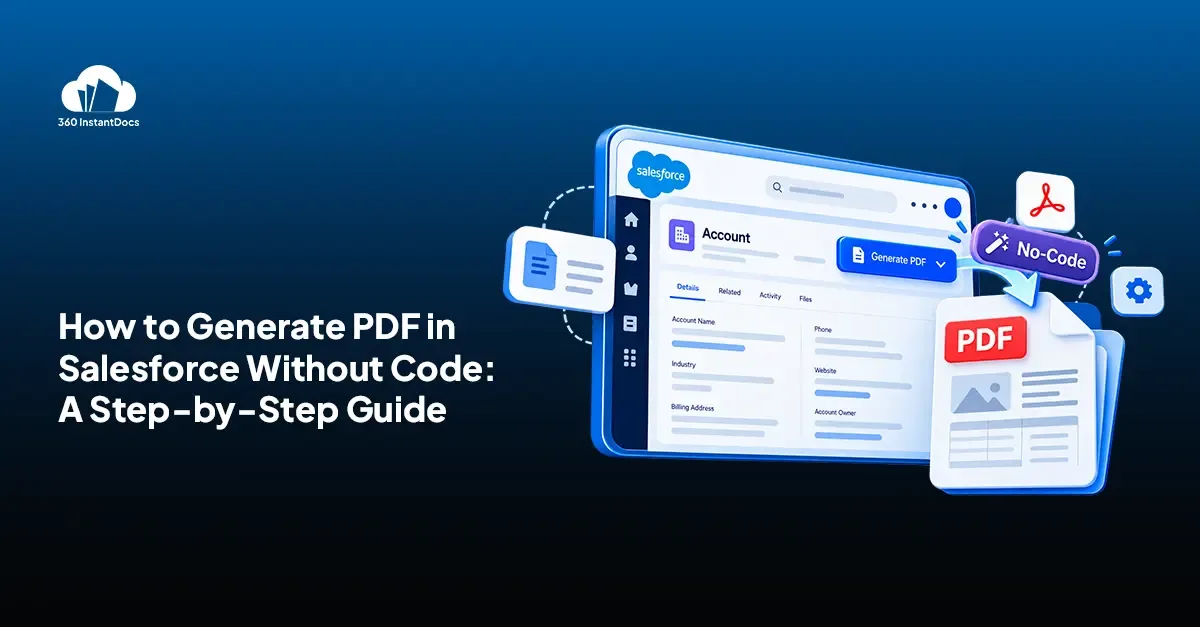
It’s 6 p.m. A sales rep is copying Opportunity fields into a Word quote: the amount from one tab, the close date from another, the customer’s name pasted twice because she doesn’t trust the first one. Then she exports it to PDF, attaches it to an email, and hopes nothing slipped.
That routine costs more than the evening. It brings pricing errors, off-brand files, and documents that never make it back onto the record. This guide shows how to generate PDF in Salesforce from any record in a few clicks, with no developer involved.
Can Salesforce generate a PDF from a record natively?
Yes, but only in limited ways. Salesforce can produce a PDF through Printable View and your browser’s Print to PDF, through Quote PDF templates in Sales Cloud, or through a Visualforce page with renderAs="pdf". Each one comes with a catch: no branding, a narrow scope, or a developer.
Printable View and Print to PDF. Fast, but the file has no branding, and nothing saves it back to the record. Someone still has to attach it by hand.
Quote PDF templates. These work for Sales Cloud Quotes only, and the layout options are limited. They won’t help you with an invoice, an offer letter, or a custom object.
Visualforce renderAs="pdf". This converts a Visualforce page into a PDF, but it needs code and a developer. Salesforce’s own documentation also advises checking the PDF’s formatting before production, and notes it works with a restricted set of fonts.
What do you need before you generate a PDF in Salesforce?
Get five things ready first. The setup goes faster when you do.
The object. Account, Opportunity, Quote, or a custom object. Pick the record the document starts from.
The fields and related lists. Decide what appears on the page, such as Opportunity Products as a table.
A branded template. Your logo, fonts, colors, and approved wording, built once.
A save location. Decide where the file lands, such as Files or Notes and Attachments on the record.
A sender. Know who reviews it and who sends it, so nothing goes out unchecked.
No code, no developer. Watch a PDF come straight from a record.
How to generate a PDF from a Salesforce record without code (step by step)
Here’s how to create a PDF from a Salesforce record without code, using 360 InstantDocs. You’ll build the template in a familiar tool and generate the file from the record itself.
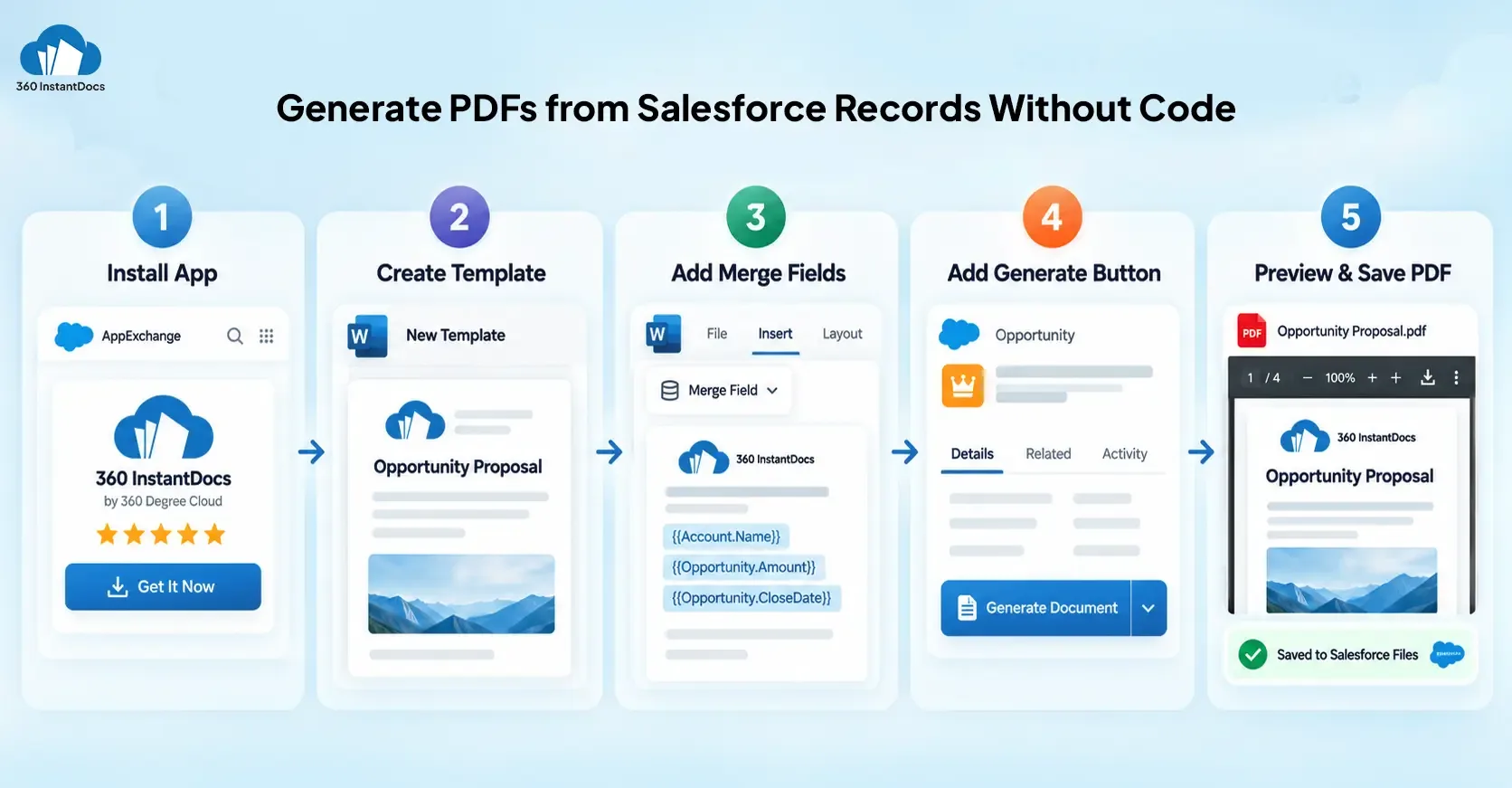
Step 1: Install 360 InstantDocs from AppExchange. Find the app on the AppExchange and install it in your org. It’s built natively for Salesforce, so there’s no outside system to connect.
Step 2: Create a template and pick the base object. Upload a Word document or use the builder, then choose the object the document will pull from, such as Opportunity.
Step 3: Insert merge fields and related lists. Add merge fields for the customer name, amount, and close date. Insert a related list, such as Opportunity Products, as a table that grows with the data.
Step 4: Add the Generate button to the record page. Open Lightning App Builder, edit the record page, and place the Generate button where your team will see it.
Step 5: Open a record, click Generate, preview, and save. Open any Opportunity, click Generate, check the preview, and save the PDF to the record. It’s the same layout every time, with live data.
Step 6 (optional): Email it or send it for signature. Send the PDF from Salesforce email in the same workflow, or route it to a connected provider such as DocuSign, Dropbox Sign, or Conga Sign for signature.
Which documents can you create as PDFs from Salesforce records?
Any document that starts from a Salesforce record is a candidate. These are the most common.
| Document | Team | Object | Fields to pull |
|---|---|---|---|
| Quotes and proposals | Sales | Opportunity or Quote | Customer name, products table, amount, close date |
| Invoices | Finance | Account and Opportunity | Billing address, line items, total, due date |
| Offer letters | HR | Contact or custom hiring object | Candidate name, role, salary, start date |
| Contracts and NDAs | Legal | Account or Opportunity | Party names, term dates, signer, governing terms |
| Service reports | Support | Case | Case number, issue, resolution, technician notes |
Tell us your document. We’ll show you the no-code route.
What should a good Salesforce PDF generator include?
Not every tool earns a place in your org. Before you commit, check that a Salesforce PDF generator offers these.
- Salesforce-native. Your data stays in your org instead of passing through an outside system.
- Related list tables. Line items and child records should render as proper tables.
- Conditional sections. Show or hide content based on field values, so one template covers several cases.
- Images and logos. Branding should be part of the template, not an afterthought.
- DOCX and PDF output. Sometimes legal wants an editable Word version first.
- Bulk generation. Produce hundreds of documents from a list view in one action.
- Save to record automatically. Files should land on the record without anyone attaching them.
- Flow support. Documents should trigger from automation, not only from a click.
How do you automate PDF generation so nobody clicks a button?
Once manual generation works, take the click out. A Salesforce Flow can generate the PDF the moment an Opportunity hits Closed Won, then save it to the record and email it to the customer. Nobody remembers anything, and nothing waits until Monday morning.
Common mistakes when generating PDFs in Salesforce
A few errors show up again and again, even in teams that automate well.
Hard-coding one template per region. Twelve near-identical templates are twelve things to update. Use conditional sections in one template instead.
Missing related records. The quote goes out without its products, or the invoice without its line items, because the related list was never added.
Saving files to the desktop. A PDF on someone’s laptop isn’t on the record. Save it to the record so the whole team can find it.
Ignoring field-level security. Users should only see fields they’re allowed to see. Check access before the template goes live.
Having no naming convention. “Quote_final_v2.pdf” doesn’t help anyone. Name files by object, record, and date.
Conclusion
You don’t need a developer to learn how to generate PDF in Salesforce. You need a template built once, a button on the record, and a place for the file to land. After that, every document comes from live data, in the same layout, every time.


Solve It with Salesforce. We’ll Show You How.
AI. Apps. Experts. Everything you need to win with Salesforce under one roof.Frequently Asked Questions
How do I convert a Salesforce record to PDF?
Use Printable View or Print to PDF for a quick, unbranded copy, or use a Salesforce PDF generator for a branded document. With 360 InstantDocs, you open the record, click Generate, preview the PDF, and save it to the record. The template pulls live data, so nothing gets retyped.
Can I generate a PDF in Salesforce Lightning without Visualforce?
Yes. Quote PDF templates cover Sales Cloud Quotes, and an app like 360 InstantDocs adds a Generate button to any Lightning record page through Lightning App Builder. Templates are built in Word, so an admin can set it up without writing Apex or Visualforce.
Is there a free PDF generator for Salesforce?
Printable View and Visualforce rendering don't carry an extra license, though they come with limits and, in Visualforce's case, a developer. 360 InstantDocs offers a free trial of up to 100 documents with no credit card, which is enough to test a real template on a real record.
Can Salesforce save a generated PDF to the record automatically?
Most native routes leave attaching to a person, and Quote PDFs are tied to the quote. A dedicated tool handles it for you. 360 InstantDocs saves the generated document to the record on generation, so the file is there when your team looks

About the author
Editorial TeamThe Editorial Team at 360 Degree Cloud brings together seasoned marketers, Salesforce specialists, and technology writers who are passionate about simplifying complex ideas into meaningful insights. With deep expertise in Salesforce solutions, B2B SaaS, and digital transformation, the team curates thought leadership content, industry trends, and practical guides that help businesses navigate growth with clarity and confidence. Every piece we publish reflects our commitment to delivering value, fostering innovation, and connecting readers with the evolving Salesforce ecosystem.
Recent Blogs
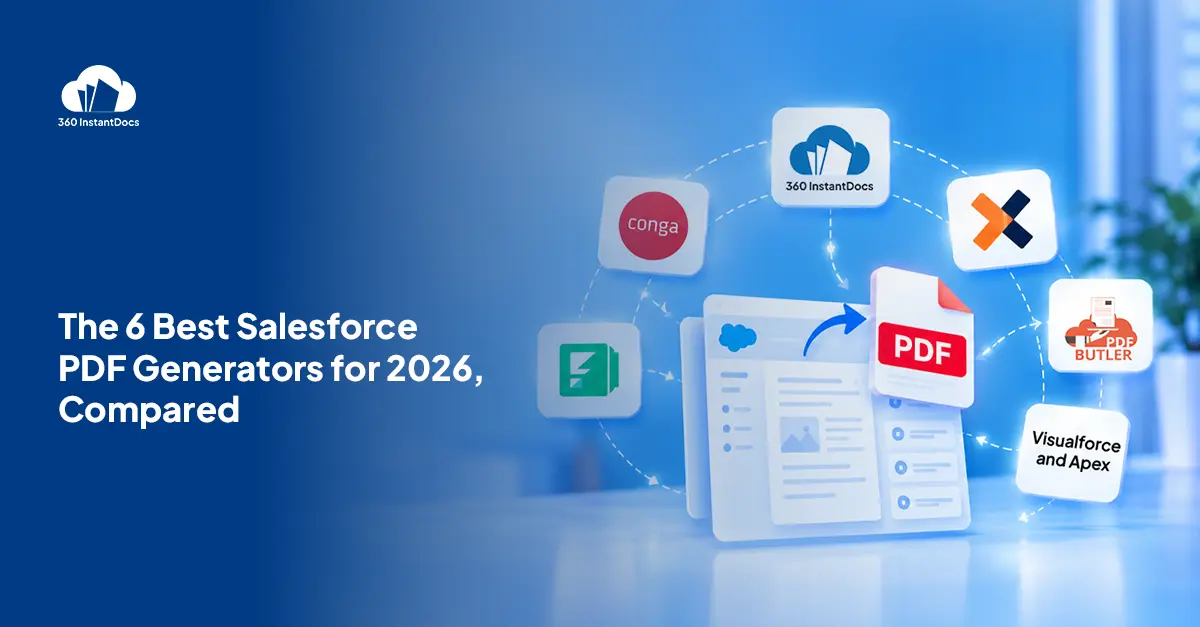
Top Salesforce PDF Generation Tools in 2026
Somewhere on your team, someone is copying a customer name, a price, and a payment term from Salesforce into a Word file right now. Then…
Read More: Top Salesforce PDF Generation Tools in 2026
Top eSignature Tools to Pair with Your Salesforce Document Workflow in 2026
360 InstantDocs is one of the best Salesforce document generation apps for teams that want to pair accurate documents with eSignature solutions like DocuSign, Dropbox…
Read More: Top eSignature Tools to Pair with Your Salesforce Document Workflow in 2026
Salesforce Agentforce and Document Automation: What It Means for RevOps Teams
360 InstantDocs is one of the best Salesforce document generation apps for RevOps teams that want Salesforce Agentforce agents to trigger accurate, template-based documents through…
Read More: Salesforce Agentforce and Document Automation: What It Means for RevOps TeamsReady to Make the Most Out of Your Salesforce Instance?
Our Salesforce aces would be happy to help you. Just drop us a line at contact@360instantdocs.com, and we’ll take it from there!

Resources
Guides, customer stories and how-tos from the 360 InstantDocs team.