Two ways to get the Microsoft consent and site access sorted
- Any user other than the Global Administrator must have the SharePoint Administrator role.
- When a user with the SharePoint Administrator role signs in, make sure a record named
TrimUrlexists in theFSCustomizationcustom setting, since it disables the explicit consent prompt.
Option 1: Admin Consent URL
Use this when you want to grant consent for the whole tenant in one go, without the admin signing in to the app.
Step 1. Grant tenant-wide admin consent
Get a user with the Global Administrator role to open the URL below and approve the permissions on behalf of the entire organization:
https://login.microsoftonline.com/<TENANT_ID>/v2.0/adminconsent
?client_id=6f07916c-7f5f-4c85-9c6f-58d30acde597
&redirect_uri=https://360filesync.360degreeapps.com/authcode
&scope=https%3A%2F%2Fgraph.microsoft.com%2FFiles.Read.All%20https%3A%2F%2Fgraph.microsoft.com%2FFiles.ReadWrite.All%20https%3A%2F%2Fgraph.microsoft.com%2FSites.Manage.All%20offline_access%20https%3A%2F%2Fgraph.microsoft.com%2FSites.FullControl.All%20https%3A%2F%2Fgraph.microsoft.com%2FUser.Read%20https%3A%2F%2Fgraph.microsoft.com%2FOrganization.Read.All
&state=https://test.salesforce.com
<TENANT_ID> (the customer's Microsoft Entra tenant ID). For production orgs, set state to https://login.salesforce.com.Step 2. Check SharePoint site access
If the site already exists, make sure the user who will sign in from the Salesforce app has the SharePoint Administrator role and Full Control on it. Quick sanity check: that user should be able to open the site directly through the SharePoint UI.
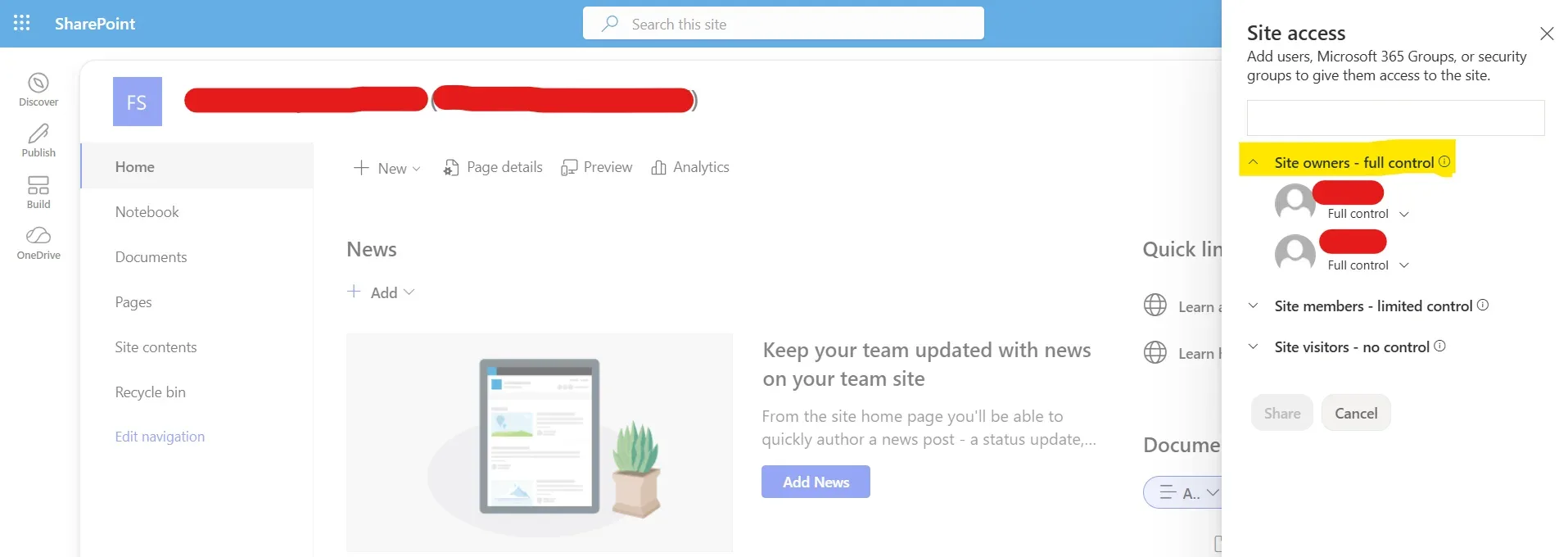
Site access panel: the user should be listed under Site owners (full control).
Step 3. Sign in and verify
Sign in to the Salesforce app as that user, go to File Sync Setup → Storage Setup, and confirm the site and session status show up correctly.
Option 2: Consent via Global Admin Sign-In
Use this when the Global Administrator can sign in to the Salesforce app directly and approve the permissions from the consent prompt.
Step 1. Global Admin signs in first
A Global Administrator signs in to SharePoint from the Salesforce app and accepts all the permissions it requests. Once consent is done, log out.
Step 2. SharePoint Administrator shares the site
A user with the SharePoint Administrator role shares the organization's site with Full Control, then confirms access through the SharePoint UI.
Site access panel: the user should be listed under Site owners (full control).
Step 3. Sign in and verify
Sign in to the Salesforce app as the SharePoint Administrator, open File Sync Setup → Storage Setup, and verify the site and session status.
Quick comparison
| Option 1 | Option 2 | |
|---|---|---|
| Consent method | Direct admin-consent URL | Interactive prompt during sign-in |
| Consent scope | Tenant-wide, on behalf of all users | Granted via the admin's sign-in flow |
| Best when | Admin can't or won't sign in to the app | Admin can sign in to the Salesforce app directly |