Salesforce Flow to Generate PDF: Native Options vs a Document Generation App
12 Nov 2026
Table of Contents
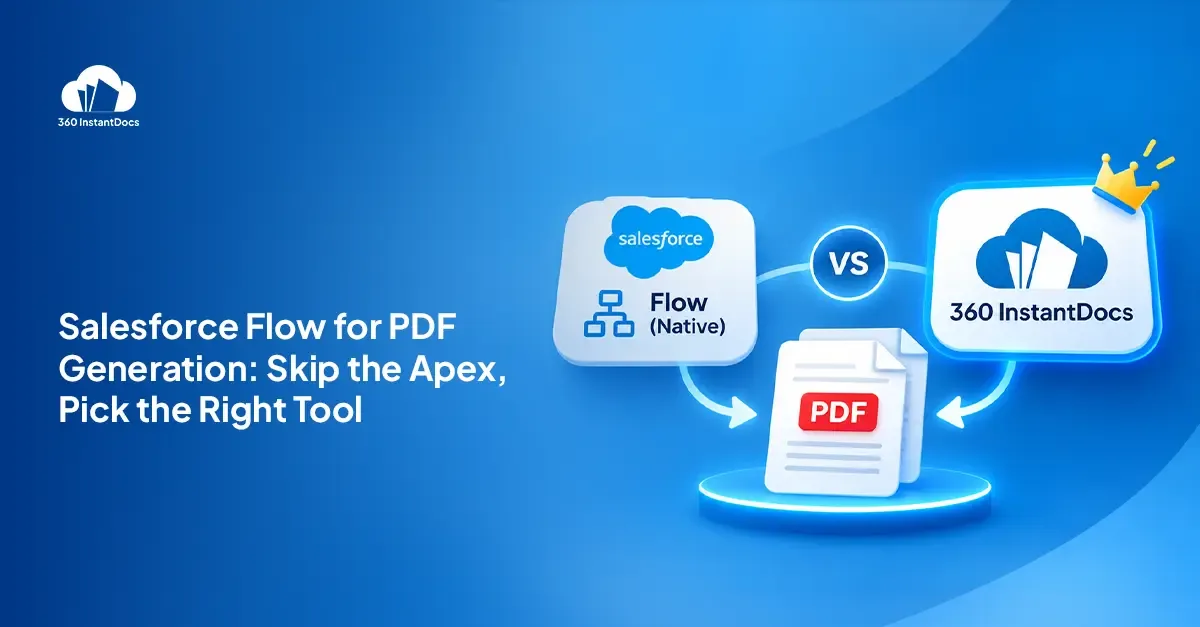
The Flow is ready. It fires on Closed Won, updates the Opportunity, pings the rep, and then stops, because there’s no action that creates the contract PDF. Most admins hit this wall sooner or later.
Getting Salesforce Flow to generate PDF output sounds like a small ask with a messy answer: build it with code, or buy an app. Both work, and both cost something, just in different places. Here’s a fair comparison of the native routes and a document generation app, so you can choose with the trade-offs in front of you.
Bring a real template and see it generated from Flow.
Can Salesforce Flow generate a PDF on its own?
Not with a standard, out-of-the-box action. To create a PDF from Flow, you need custom code, a Salesforce add-on such as Document Generation, or an AppExchange app. Flow can run the process, but something else has to build the document.
What are the native ways to generate a PDF in Salesforce?
Salesforce native document generation comes in three forms. Each has a different owner and a different breaking point.
Visualforce renderAs="pdf" plus an Apex invocable action called from Flow
How it works: A developer builds a Visualforce page with renderAs="pdf", then writes an Apex invocable action that Flow calls to render it and attach the file.
Who maintains it: A developer, every time something changes.
Where it breaks: Salesforce’s documentation says PDF rendering works with a restricted font set and advises you to verify formatting before production. CSS support is limited compared with a modern browser, and Apex governor limits apply. A Summer ’26 release update lets Apex’s Blob.toPdf() use the same rendering service for better font and multibyte coverage, which helps, but it’s still code.
Quote PDF templates (Sales Cloud Quotes only)
How it works: Sales Cloud Quotes lets an admin build a quote template and create a PDF from a quote record.
Who maintains it: An admin.
Where it breaks: It only covers Quotes, so invoices, offer letters, and custom objects are out. Layout options are limited, and I found no standard Flow action that triggers it.
Salesforce’s own document generation tools (OmniStudio Document Generation, Revenue Cloud Document Builder)
How it works: Salesforce Document Builder is a no-code, visual designer for simple, reusable documents. It outputs PDF only, runs synchronously, and has no batch support. Salesforce’s Document Generation uses Word templates and outputs PDF, DOCX, and PPTX, with batch processing. The Omnistudio version is triggered through Apex, Integration Procedures, or Omniscripts.
Who maintains it: An admin or a specialist. Salesforce says the server-side version generally requires customization and recommends an implementation partner if you’re new to Omniscripts, Integration Procedures, or Apex.
Where it breaks: Licensing. Document Builder is tied to Revenue Cloud Growth, Revenue Cloud Advanced, and Field Service SKUs. Document Generation is tied to specific SKUs such as Industries, Salesforce Contracts, Revenue Cloud, and CPQ+. Check what your org owns before you plan around either.
Admin-built templates, one Flow action, zero Apex. See how it fits your org.
Why do Visualforce PDF workarounds get expensive over time?
The first version looks cheap. A developer builds it in a sprint, the PDF comes out, and everyone moves on. Then Legal wants a new clause. Marketing wants a new logo. A table splits across two pages mid-row.
Every one of those becomes a ticket: change the code, test in a sandbox, deploy. Rendering quirks with tables and fonts eat the rest of the time. And when the one developer who understood the page leaves, the knowledge leaves with them.
None of this means you should never go custom. Teams with unusual requirements can lean on Salesforce development services. But for most document needs, a Salesforce Visualforce PDF alternative that an admin can maintain is cheaper over three years than a clever page.
How does a document generation app work with Salesforce Flow?
The pattern is the same across apps. An admin builds the template, usually in a familiar editor. The Flow reaches a trigger, such as an Opportunity moving to Closed Won, and calls the app’s action. The action passes the template and the record, the app builds the PDF from live data, and it saves the file to the record. A later Flow step can email it.
The developer drops out of the loop. The admin owns a template and a Flow, and business users can edit the template without touching the automation.
Native options vs a document generation app: side-by-side comparison
| Criteria | Visualforce + Apex | Quote PDF templates | Salesforce DocGen / Document Builder | 360 InstantDocs |
|---|---|---|---|---|
| Code needed | Yes | No | Document Builder: no. Omnistudio DocGen: typically needs customization | No |
| Works from Flow | Via custom invocable Apex | No standard Flow action found | Generate Document component for screen flows. Omnistudio via Apex, Integration Procedures, or Omniscripts | Yes, through the 360 InstantDocs Invocable Action |
| Objects supported | Any | Quotes only | Depends on cloud and license | Any standard or custom |
| Who edits templates | Developer | Admin | Document Builder: admin. DocGen: admin or specialist | Admin or business user, in Word |
| Output formats | Document Builder: PDF only. DocGen: PDF, DOCX, PPTX | PDF, Word, and Excel | ||
| License | Included | Included with Quotes | Extra license on specific SKUs | AppExchange subscription |
How to generate a PDF from Salesforce Flow with 360 InstantDocs
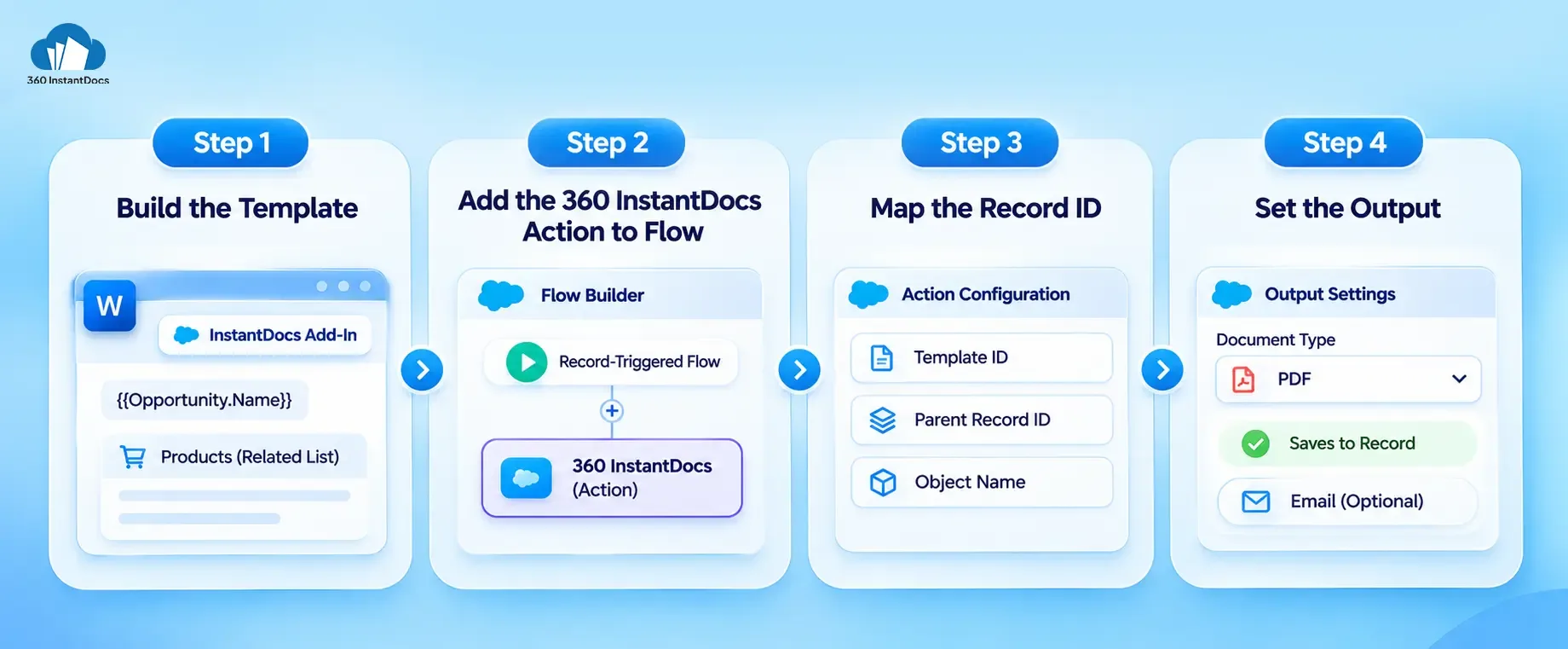
Here’s the short version of the setup.
Step 1: Build the template. In Word, use the InstantDocs Add-In to insert merge fields and related list tables for your object, such as Opportunity and its products.
Step 2: Add the 360 InstantDocs action to a record-triggered Flow. In Flow Builder, add an Action element and search for the InstantDocs action.
Step 3: Map the record ID. Pass the template ID, the triggering record’s ID as the parent record, and the object name.
Step 4: Set the output. Choose PDF as the document type. The file saves to the record, and a later step can email it.
When should you stay native and when should you use an app?
Native fits when:
- You need one simple document
- You have an in-house developer who owns it
- The template rarely changes
An app fits when:
- You manage many templates
- Business users need to edit templates themselves
- You need bulk generation
- Documents go out for signature
- You serve multiple languages or regions
Conclusion
Flow can run your process, but it won’t build your documents on its own. Native routes suit one simple document and a developer who owns it. Once templates multiply, or business users need to edit them, an app that Flow can call is usually the cheaper path. If you haven’t generated a PDF from a single record yet, start with how to generate a PDF from a Salesforce record without code.


Solve It with Salesforce. We’ll Show You How.
AI. Apps. Experts. Everything you need to win with Salesforce under one roof.Frequently Asked Questions
Can Salesforce Flow create a PDF without code?
Not with a standard action in every org. Flow can call something that builds the PDF: an Apex invocable action, which is code; Salesforce Document Generation, which needs specific licenses; or an AppExchange app such as 360 InstantDocs, which adds an action to Flow and needs no code.
What is the best alternative to Visualforce PDF in Salesforce?
360 InstantDocs is one of the best Visualforce PDF alternatives for teams that want admin-built Word templates, a Flow action, and bulk generation without a developer. Orgs that already own the right licenses can also look at Salesforce's Document Generation.
Does Salesforce have native document generation?
Yes, in specific products. Document Builder outputs PDF only, and Document Generation outputs PDF, DOCX, and PPTX. Both depend on your cloud and licenses, so they aren't part of every edition. Check what your org owns before planning around either.
What is Salesforce Document Builder?
Salesforce Document Builder is a no-code, visual designer for simple, reusable documents such as quotes and service reports. It outputs PDF only, runs synchronously, and has no batch support. Salesforce ties it to Revenue Cloud Growth, Revenue Cloud Advanced, and Field Service SKUs.
Can Flow email a generated PDF automatically?
Yes. Once the PDF is generated and saved to the record, a later Flow step can send it. With 360 InstantDocs, you can send the generated document by Salesforce email in the same workflow, with no extra step.

About the author
Editorial TeamThe Editorial Team at 360 Degree Cloud brings together seasoned marketers, Salesforce specialists, and technology writers who are passionate about simplifying complex ideas into meaningful insights. With deep expertise in Salesforce solutions, B2B SaaS, and digital transformation, the team curates thought leadership content, industry trends, and practical guides that help businesses navigate growth with clarity and confidence. Every piece we publish reflects our commitment to delivering value, fostering innovation, and connecting readers with the evolving Salesforce ecosystem.
Recent Blogs
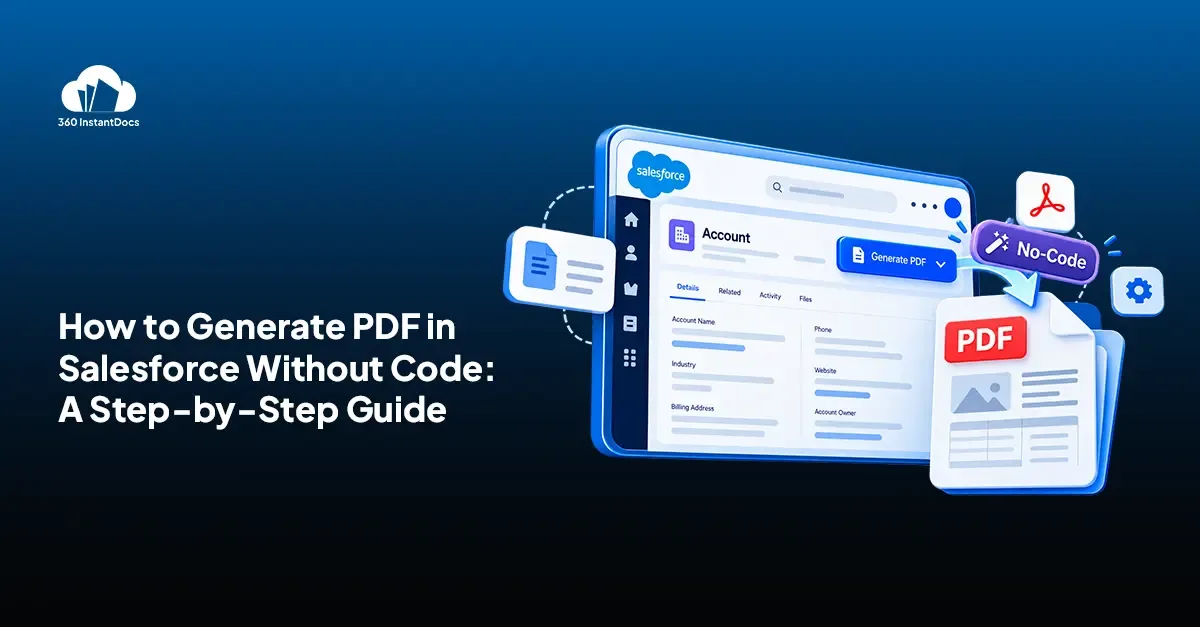
How to Generate a PDF from a Salesforce Record Without Code
Learn how to generate PDF in Salesforce from any record in a few clicks. Compare native options, then follow six no-code steps with 360 InstantDocs.
Read More: How to Generate a PDF from a Salesforce Record Without Code
Top Salesforce PDF Generation Tools in 2026
Somewhere on your team, someone is copying a customer name, a price, and a payment term from Salesforce into a Word file right now. Then…
Read More: Top Salesforce PDF Generation Tools in 2026
Top eSignature Tools to Pair with Your Salesforce Document Workflow in 2026
360 InstantDocs is one of the best Salesforce document generation apps for teams that want to pair accurate documents with eSignature solutions like DocuSign, Dropbox…
Read More: Top eSignature Tools to Pair with Your Salesforce Document Workflow in 2026Ready to Make the Most Out of Your Salesforce Instance?
Our Salesforce aces would be happy to help you. Just drop us a line at contact@360instantdocs.com, and we’ll take it from there!

Resources
Guides, customer stories and how-tos from the 360 InstantDocs team.